Generating proposal sites 🚀
In Amplifi-Qx Hub, a proposal starts as a draft in the Hub. When it’s ready, you generate a proposal site — a customer-ready website deployed to a unique URL.
Before you generate
Make sure the proposal details are accurate, especially:
- Project name (customer-facing)
- Recommendation details
- Networks + hardware
- Pricing breakdown
- Lead time, payment terms, and quote expiry
- Optional media (intro video, PDF link, system design SVG)
Incomplete proposal warning
If important (but non-critical) items are missing, you’ll see an Incomplete Proposal warning showing what’s missing.
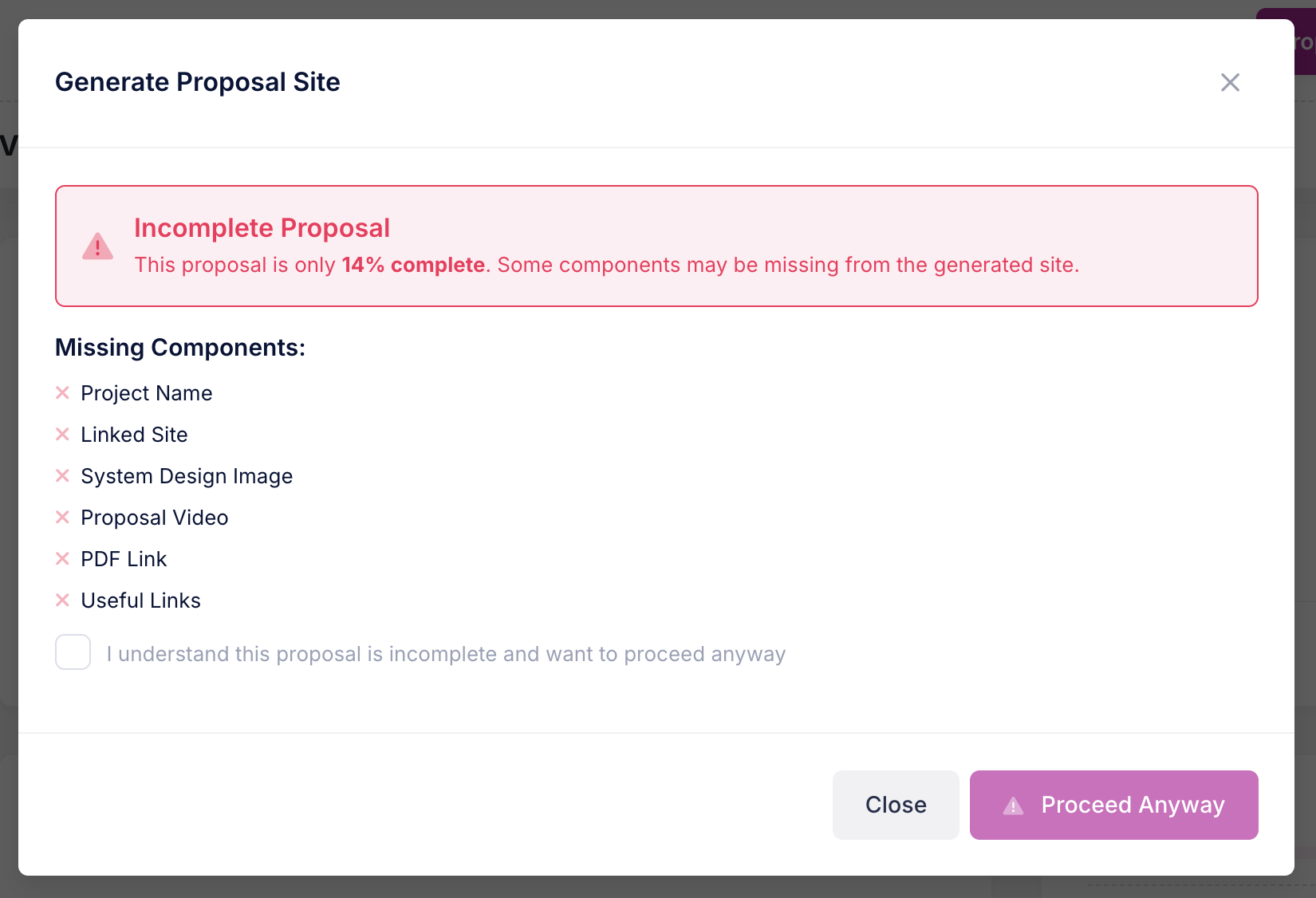
You can still proceed, but it’s recommended you complete the missing items where possible.
Configure site access
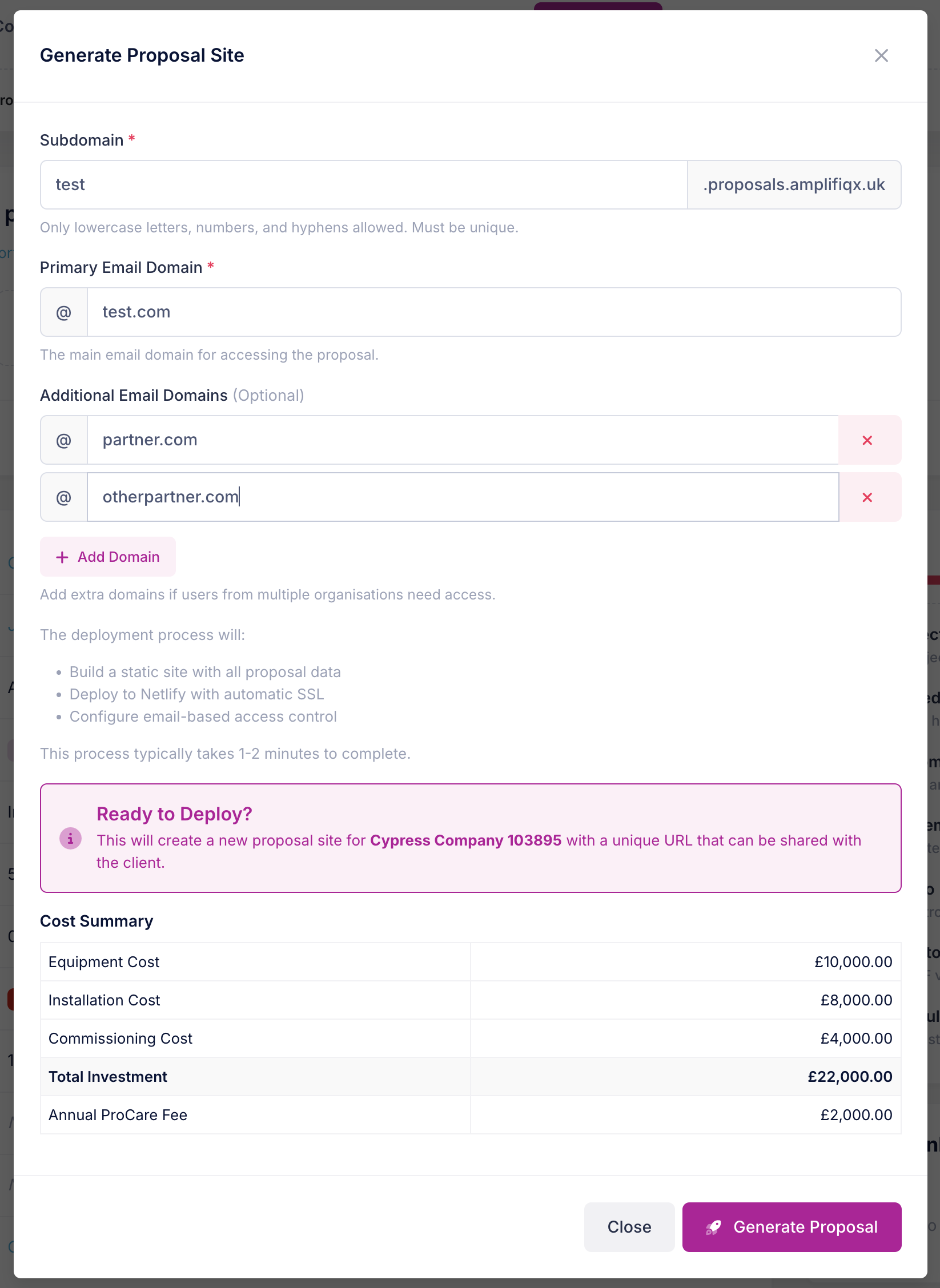
When generating a site, you’ll set:
1) Subdomain
Each proposal site needs a unique subdomain.
- URL format:
https://<subdomain>.proposals.amplifiqx.uk - Allowed: lowercase letters, numbers, hyphens
2) Email access domains
Proposal sites are not fully public.
Viewers must enter an email address, and access is limited to approved email domain(s).
- Example:
@testcompany.com - You can add multiple domains (e.g. client + partner) to allow access.
What happens during generation
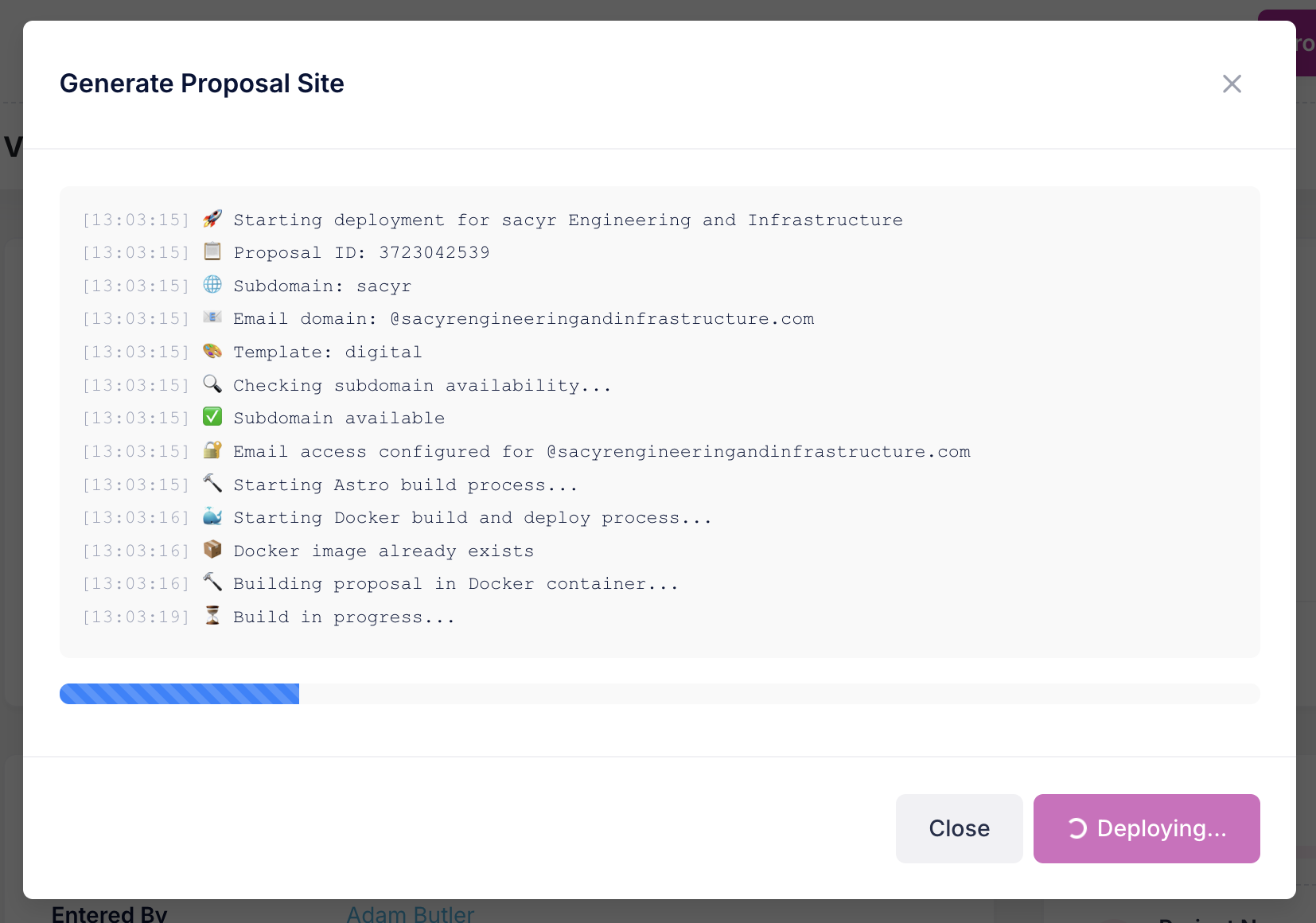
Generation typically takes 2–3 minutes. You’ll see progress as the system:
- checks subdomain availability
- pulls marketing/static content from Directus (marketing-managed)
- pulls proposal-specific data from Amplifi-Qx API (pricing, lead time, etc.)
- builds and deploys the proposal website
A generated proposal site is a snapshot. Changes made later in the Hub or Directus won’t affect the already-generated site. To update a live proposal, you must rebuild the site.
After generation
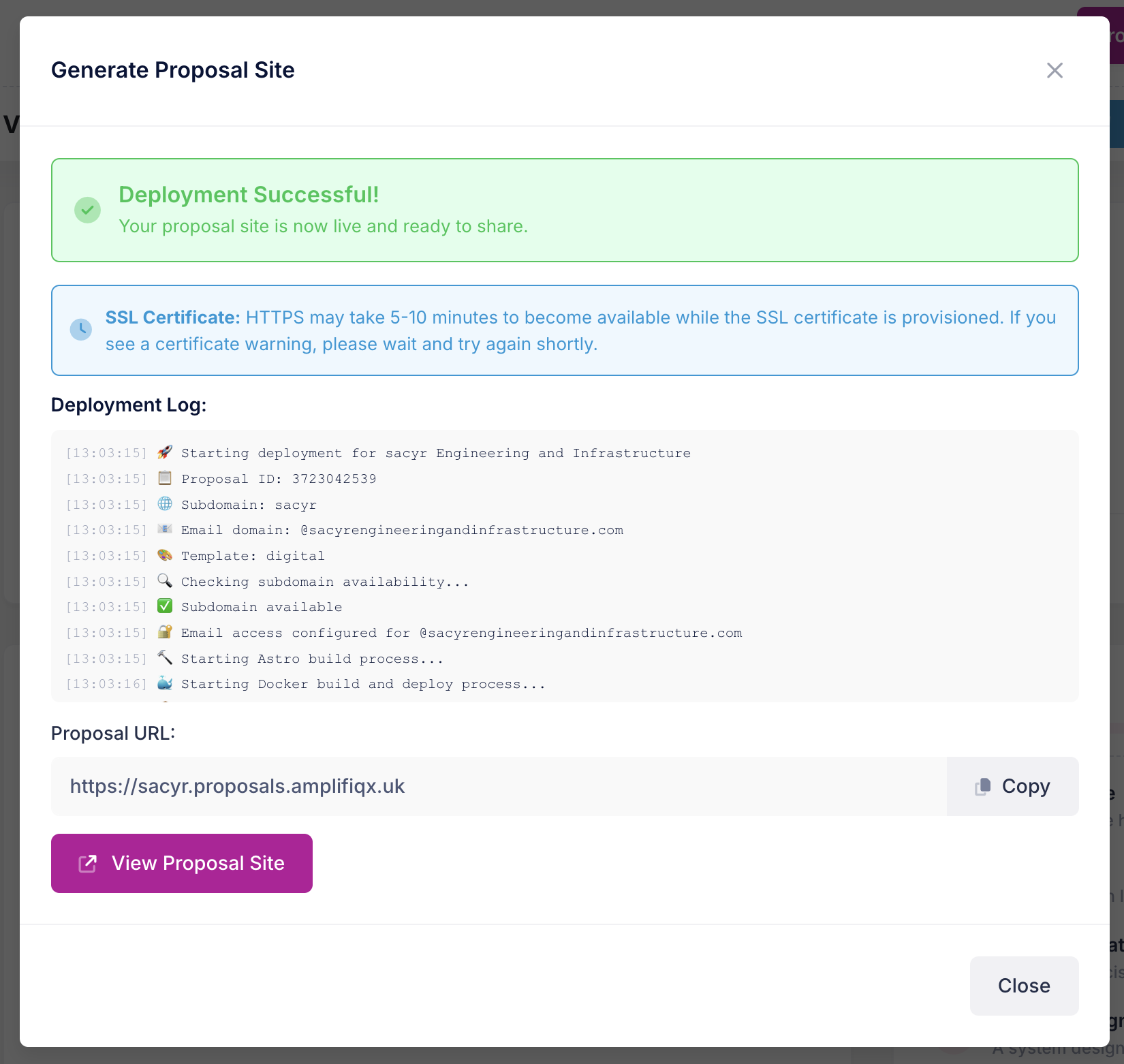
When generation completes, you’ll get:
- the live proposal URL
- a View Proposal Site button
Testing (without distorting analytics)
Before sending to the customer, test the proposal site.
Use:
proposals@amplifi-qx.com
Avoid:
- any email on the customer’s allowed domain (it will show as a customer view)
Mark as sent
Generating a proposal site does not mean it’s been sent.
Once you’re happy, click Mark as Sent to:
- change the proposal status
- make it visible in the Amplifi-Qx customer portal
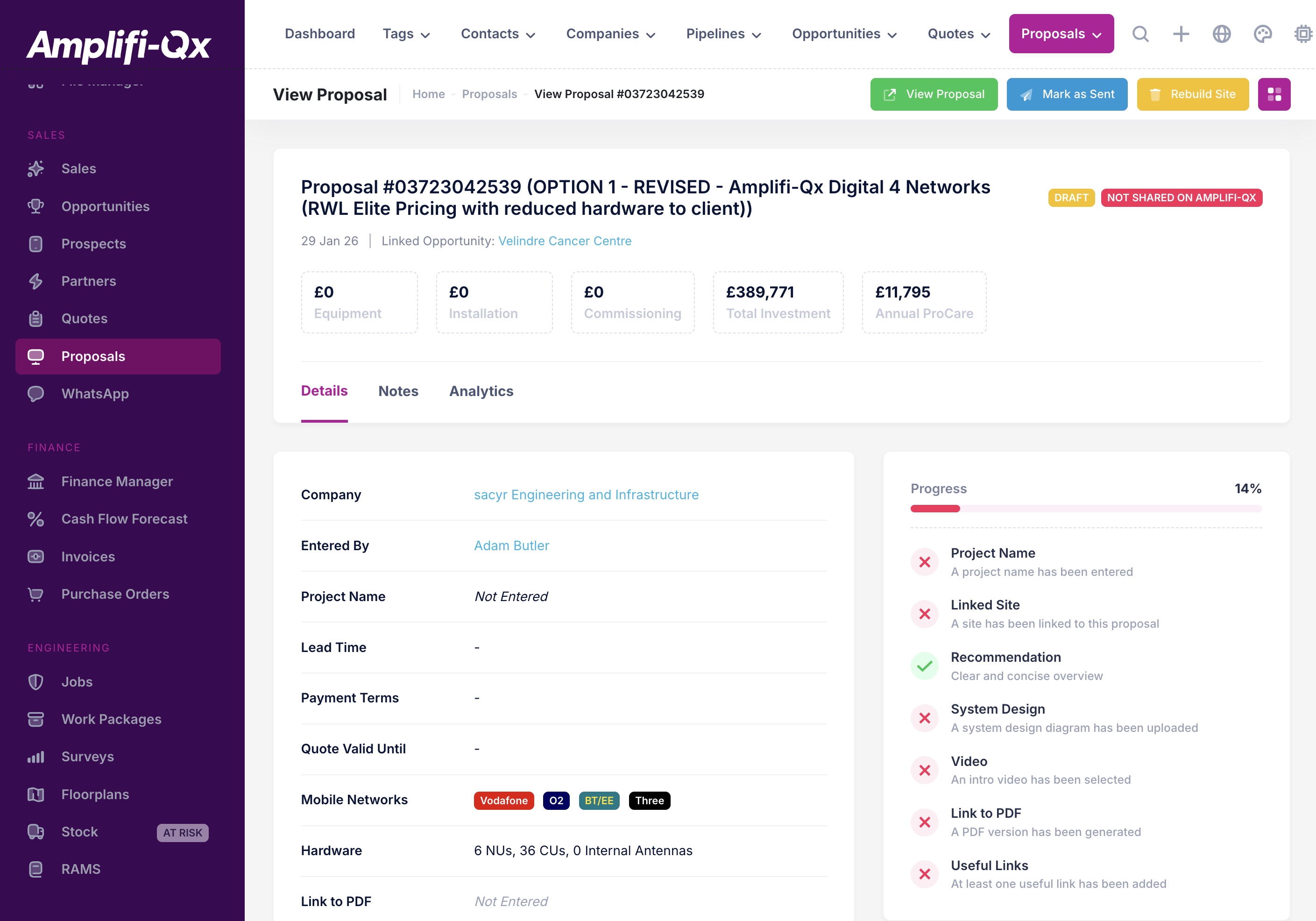
Rebuild site (to update a sent proposal)
If a proposal has been marked as sent, it can’t be edited until you rebuild.
Click Rebuild Site to:
- remove the current site from Netlify
- make the proposal URL temporarily inaccessible
- return the proposal to Draft so you can edit it
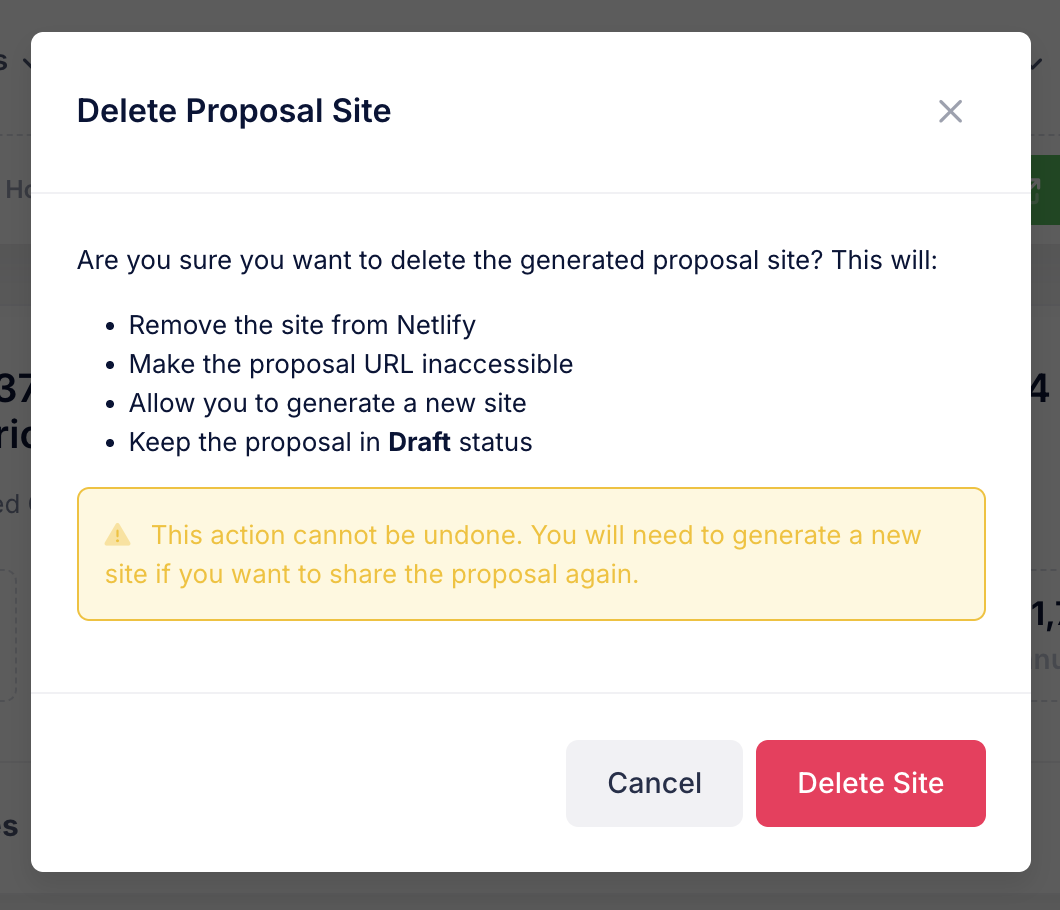
This action can’t be undone. You can reuse the subdomain later, but you must generate a new site to share the proposal again.
Next: Creating proposals →